Generating Employee Reports
This option allows you to generate different kinds of employee list reports. The available reports includes Full Employee, Preference, Database Ranking, Exception, and Availability.
What do you want to do?
Tasks in this Topic Include:
- Access Reports
- Generate Database Ranking Report
- Generate Availability Report
- Generate Preference Report
- Generate Exception Report
- Generate Full Employee Report
Related Tasks:
- Maintaining the Employee List
- Applying Availability / Preference
- Fixed Shift Selection
- Exception Calendar and Meeting Planner
- Changing Rank
- Maintaining Notes
- Setting Non-Call Availabilities
- Maintaining Employee Details
- Maintain Inactive Employees
- Employee Import / Export
- Employee Templates
- WFO Planning a Schedule Rotation
Access Reports
- Select Employees from the left-navigation menu.
- Select Reports.
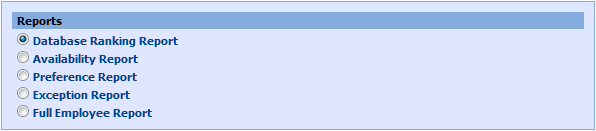
Generate Database Ranking Report
This option allows you to generate the Database Ranking report based on the criteria you define. The report displays the rank of each employee.
- Select Database Ranking Report from the Reports section.

- Select a skill team in the Skill Team drop-down menu.
- Select a site in the Site drop-down menu.
- Select an employee team in the Employee Team drop-down menu.
- Select View Report.
Generate Availability Report
This option allows you to generate the Availability report for all the employees based on the criteria you define.
- Select Availability Report from the Reports section.
- Select a skill team in the Skill Team drop-down menu.
- Select a site in the Site drop-down menu.
- Select an employee team in the Employee Team drop-down menu.
- Select View Report.
Generate Preference Report
This option allows you to generate the Preference Report based on the criteria you define. This report provides the preference details of all employees of the workgroup.
- Select Preference Report from the Reports section.
- Select a skill team in the Skill Team drop-down menu.
- Select a site in the Site drop-down menu.
- Select an employee team in the Employee Team drop-down menu.
- Select View Report.
Exception Report
This option allows you to generate the Exception report for all the employees based on the criteria you define. The following table describes the configuration choices:
|
Exception Report Fields |
Description |
||
|---|---|---|---|
| Skill Team | Select one or more Skills Teams to include in the report; or uncheck All to select (No Skill Team) | ||
| Site | Select one or more Sites to include in the report (must select at least one) | ||
| Employee | Select either one employee or All. (Site selection determines which employees appear in this list) | ||
| Sort By | Select one or more Employee Teams to include in the report (must select at least one) | ||
| Type |
|
||
| Exception Codes | Select one or more Exception Codes to include in the report (must select at least one) | ||
| Work Groups | Select one or more Workgroups to include in the report (must select at least one) | ||
| Replace special characters in CSV export | Removes non-text/non-numeric characters (such as commas, quotation marks, forward slashes) from the report results when exported as a CSV file. These characters sometimes cause problems when importing the file into another system. | ||
| From Date | Select Date Range for report. |
Generate Exception Report
This option allows you to generate the Exception report for all the employees based on the criteria defined.
- Select Exception Report from the Reports section.
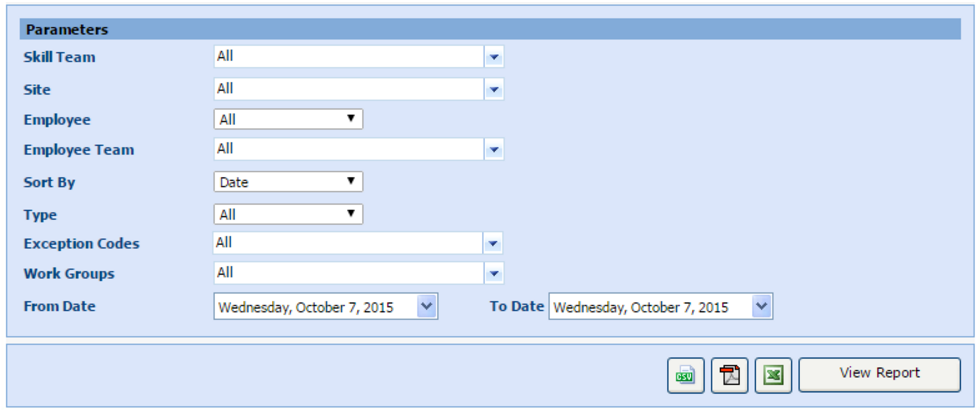
- Select a skill team in the Skill Team drop-down menu.
- Select the site from the Site drop-down menu.
- Select the employee of the report in the Employee drop-down menu.
- Select an employee team in the Employee Team drop-down menu.
- Select the sorting option you want to use from
the Sort drop-down menu. Options are:
- Date
- Exception Code
- Select the type of exceptions to include in the report from the Type drop-down menu.
- Select each applicable code in the Exception Codes drop-down menu.
- Select each applicable work group in the Work Groups drop-down menu.
- Check Replace special characters in CSV export to replace all double quotes, commas, and line breaks with spaces in CSV export.
- Select the dates in the From and To Date drop-down menus.
- Select View Report.
Generate Full Employee Report
This option allows you to generate the Full Employee report based on the criteria you define.
- Select Full Employee Report from the Reports section.
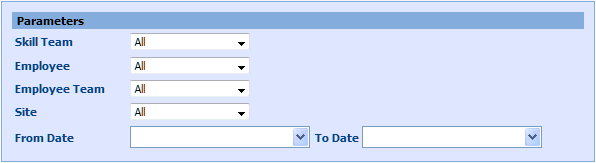
- Select a skill team in the Skill Team drop-down menu.
- Select the recipient of the report in the Employee drop-down menu.
- Select an employee team in the Employee Team drop-down menu.
- Select a site in the Site drop-down menu.
- Select the dates in the From Date and To Date drop-down menus.
- Select View Report.